Beginner's Guide
魔導書:魂の器(ウォレット)と源泉(フォーセット)の導き
【 STEP 1 】 Let's prepare your wallet! (第一の儀式:器の準備)
This site requires a dedicated "wallet" to store your crypto assets and NFTs. But don't worry, no
complicated app installation is needed!
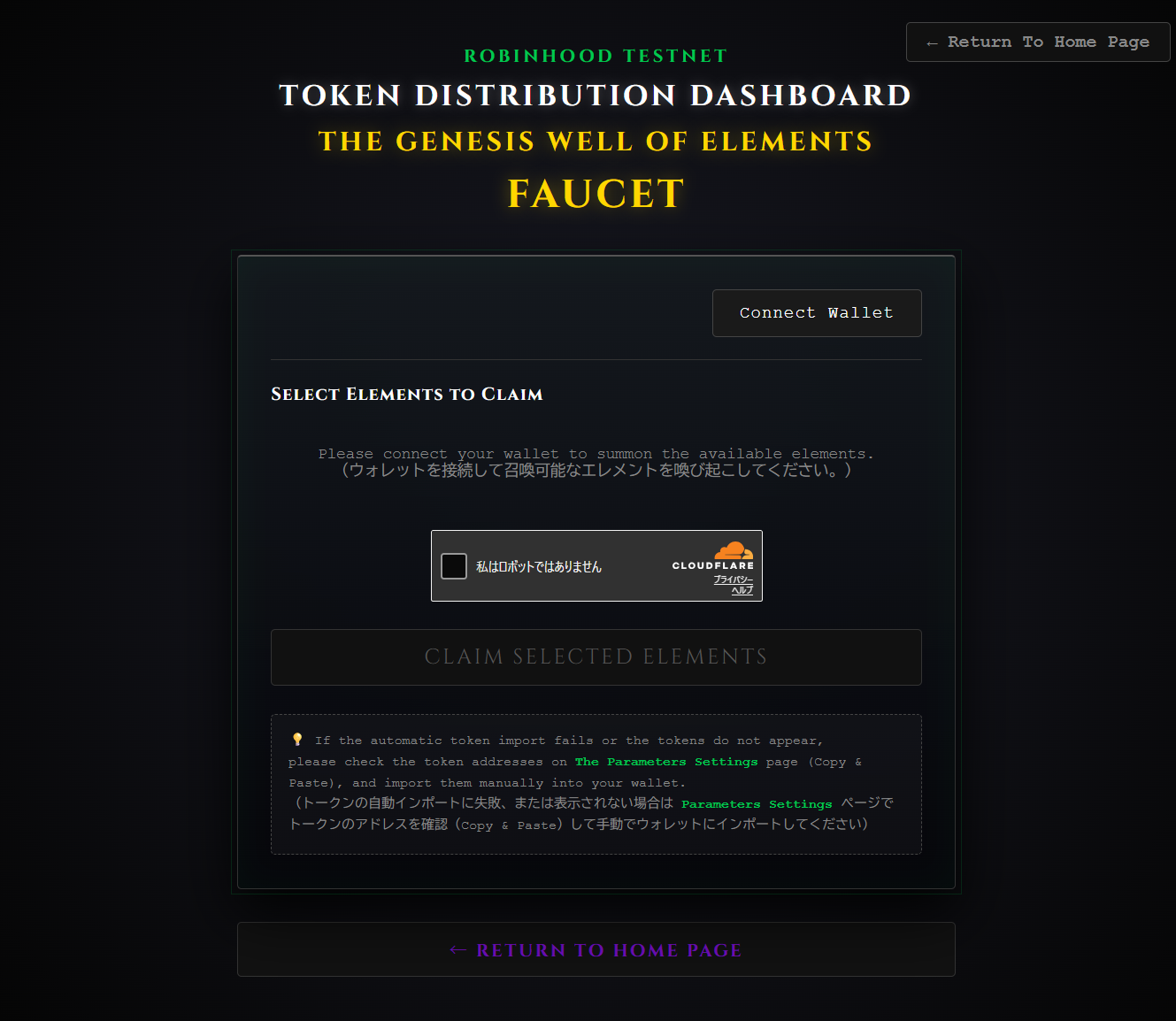
- Click the "Connect Wallet" button in the the page.
- An "Instant Wallet" will be automatically created behind the scenes and connected to the site.
- Once connected, your "Wallet Address" (a string starting with 0x...) will be displayed on the page. This is your account number.
Note: The "Instant Wallet" is exclusively for the
Robinhood Chain Testnet. To use other networks, please export your private key to a
full-fledged wallet (e.g., MetaMask).
【STEP 1】まずはウォレット(お財布)を準備しよう
このサイトでは、仮想通貨やNFTを入れるための専用のお財布(ウォレット)が必要です。でも、面倒なアプリのインストールは不要です!
このサイトでは、仮想通貨やNFTを入れるための専用のお財布(ウォレット)が必要です。でも、面倒なアプリのインストールは不要です!
- ページ内の 「Connect Wallet」 ボタンをクリックしてください。
- 裏側で自動的に「あなた専用の仮設ウォレット(Instant Wallet)」が作成されてサイトに接続されます。
- 接続されるとページ上にあなたの「ウォレットアドレス(0x... で始まる文字列)」が表示されます。これがあなたの口座番号です。
※注意:「Instant Wallet」は Robinhood Chain Testnet
専用 です。他のネットワーク(チェーン)を利用する場合は、秘密鍵をMetaMaskなどのウォレットアプリに復元してご利用ください。
【 STEP 2 】 Get "ETH" for Gas (第二の儀式:魔力の抽出)
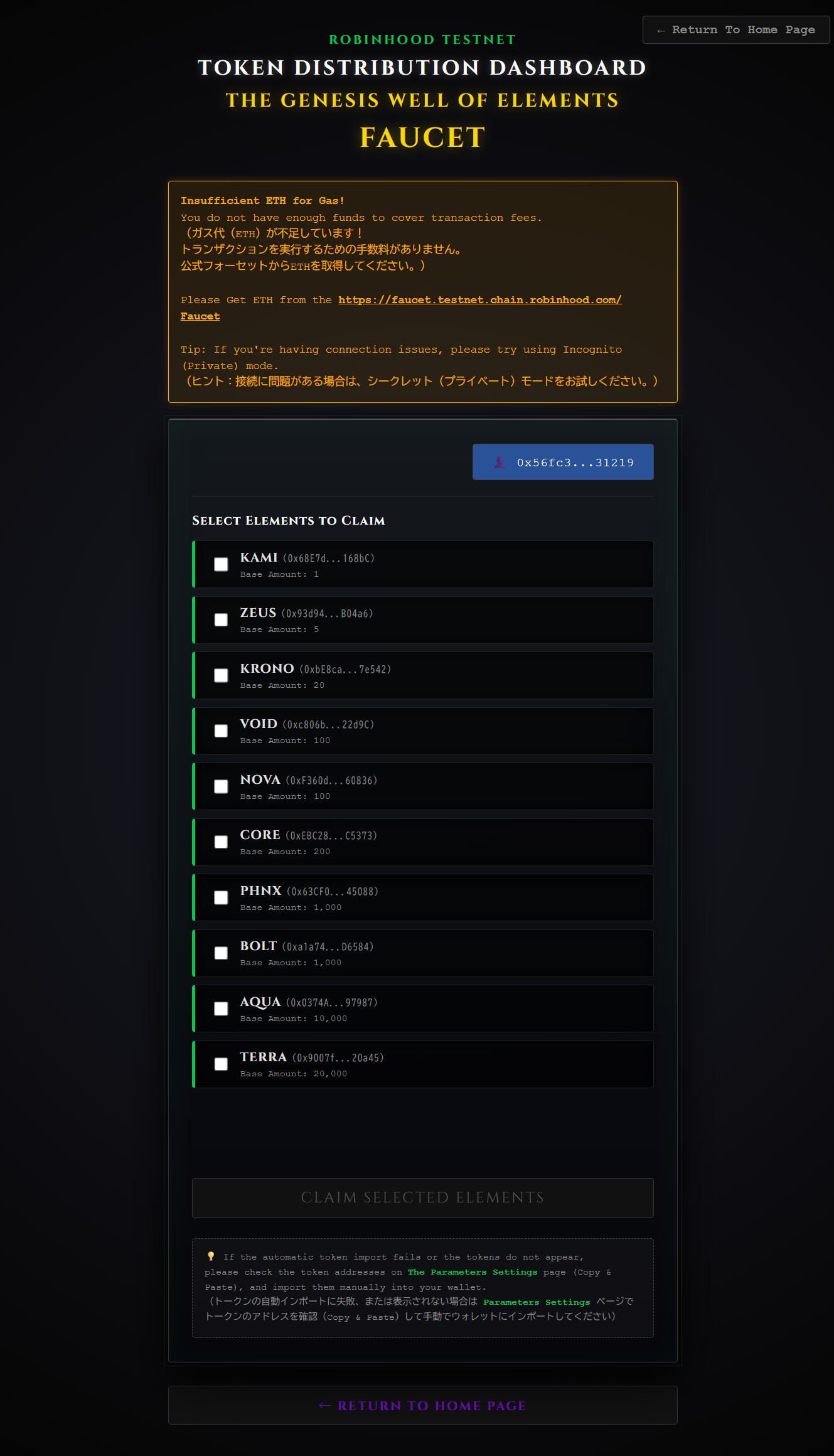
In the blockchain world, a small fee called "Gas" (paid in ETH) is required every time you make a
transaction or interact with the site. Currently, your wallet is empty, so you cannot perform any
actions. (You should see a warning message.)
- Click your wallet address button (0x...) to open your wallet profile menu and click "Copy Address".
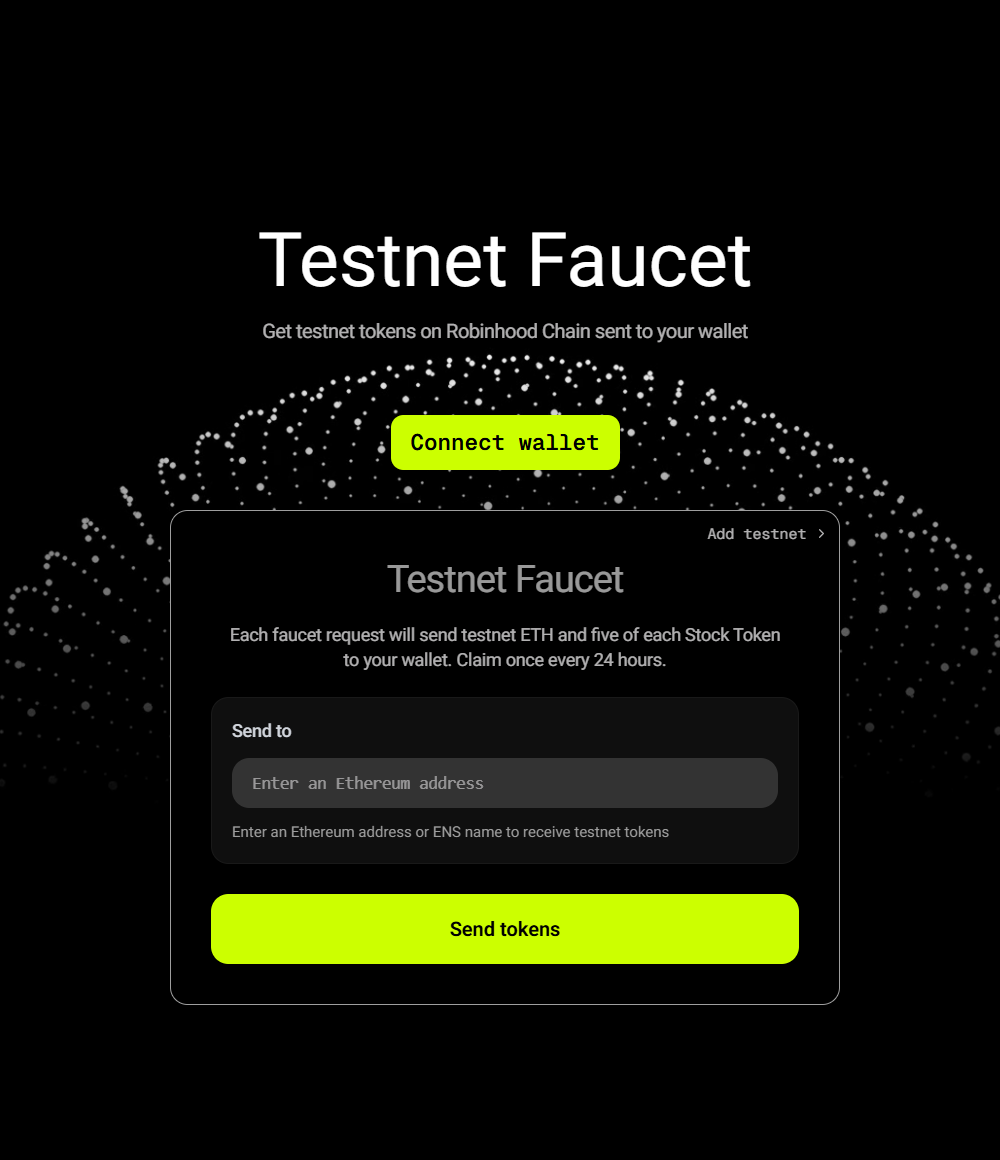
- Open the official faucet link (Robinhood Chain Testnet Faucet) found in the warning message or Wallet Profile. https://faucet.testnet.chain.robinhood.com/ Faucet
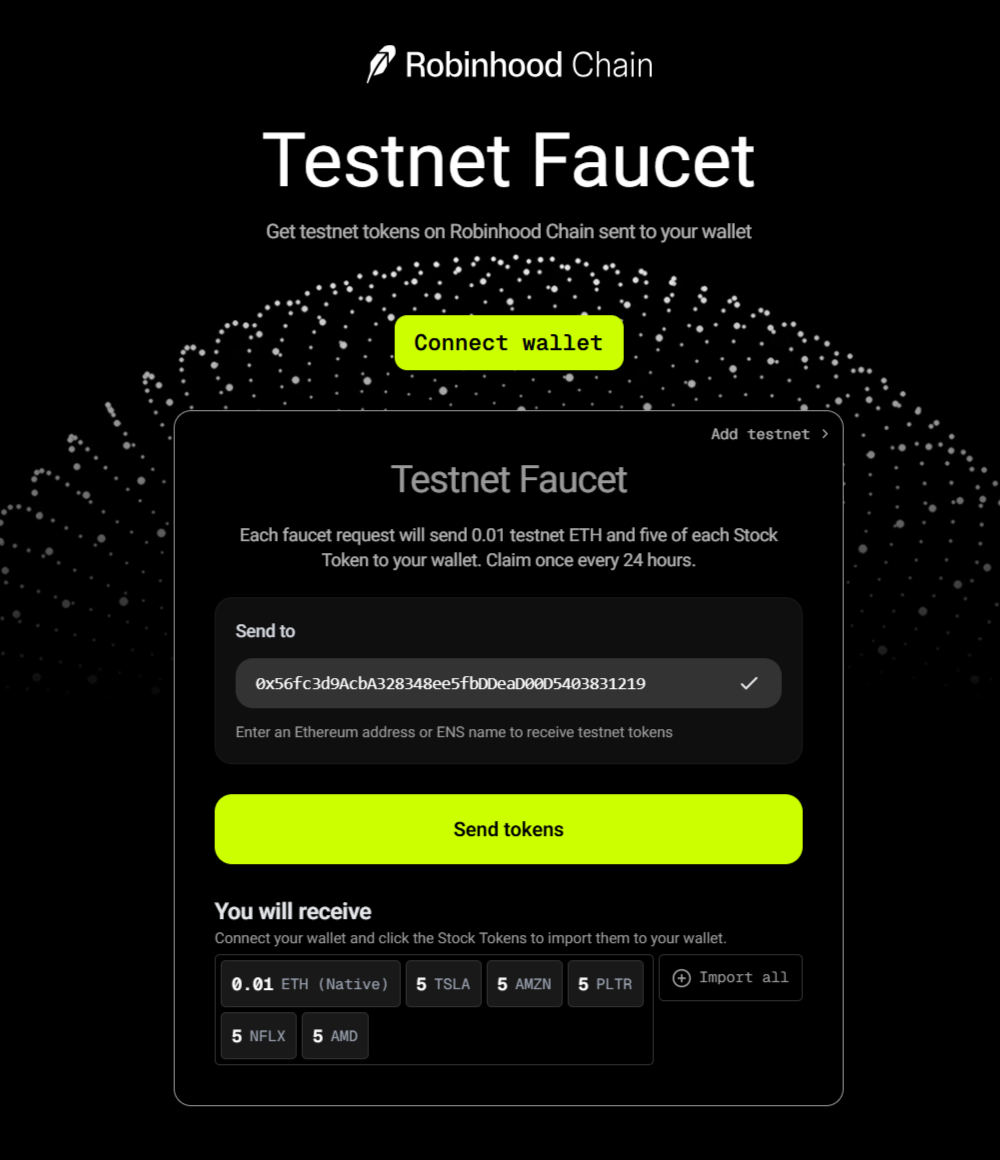
- Paste your copied address into the input field on the official site and click "Send tokens".
- That's it! "0.01 ETH" has been deposited into your wallet to use as gas fees. Let's return to the original page.
💡Tip:
If you're having connection issues, please try using Incognito (Private) mode.
【STEP 2】ガス代(手数料)の「ETH」をもらおう
ブロックチェーンの世界では、通信や操作を行うたびに「ガス代」と呼ばれる少額の手数料(ETH)がかかります。現在、あなたのお財布は空っぽなので操作ができません。(警告メッセージが出ているはずです)
ブロックチェーンの世界では、通信や操作を行うたびに「ガス代」と呼ばれる少額の手数料(ETH)がかかります。現在、あなたのお財布は空っぽなので操作ができません。(警告メッセージが出ているはずです)
- ウォレットアドレス(0x...のボタン)をクリックしてプロファイルメニューを開き、「Copy Address」をクリックします。
- アラート表示またはウォレットプロファイル内にある公式フォーセットのリンクを開きます。 https://faucet.testnet.chain.robinhood.com/ Faucet
- 公式サイトの入力欄に、先ほどコピーしたアドレスを貼り付けて 「Send tokens」を押します。
- これで手数料として使える「0.01 ETH」があなたのお財布に振り込まれました!元のページに戻ってみましょう。
💡ヒント:
接続に問題がある場合はシークレット(プライベート)モードをお試しください。
【 STEP 3 】 Summon Your Desired Elements (第三の儀式:素材の召喚)
Now that you have gas fees, you are ready to go!
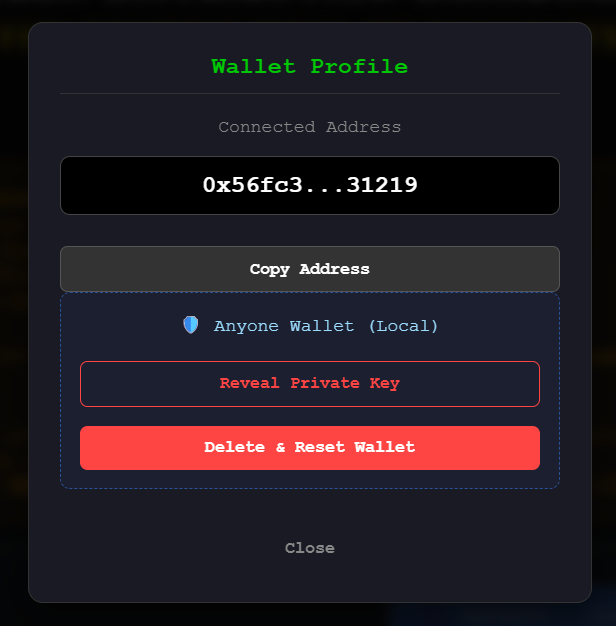
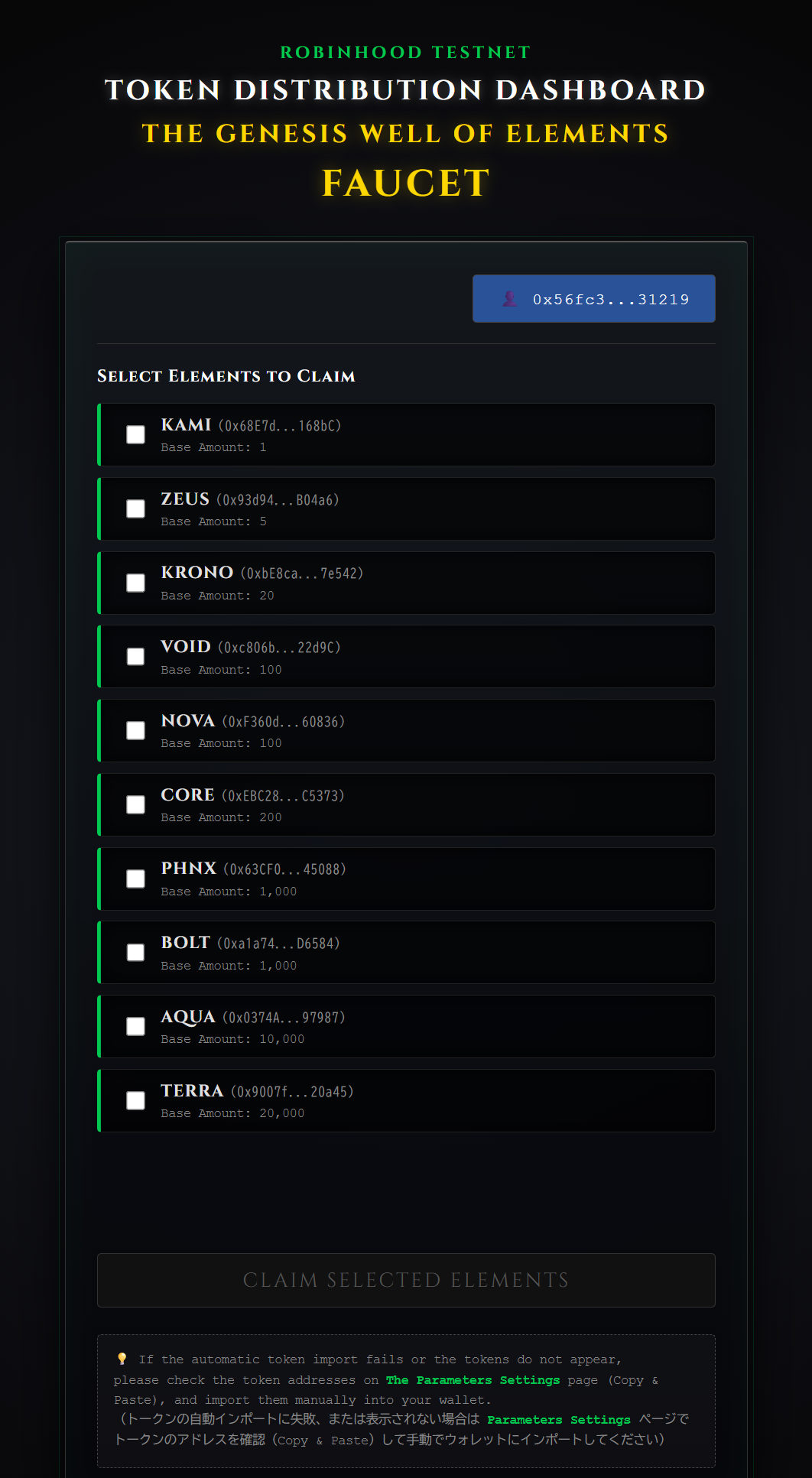
- Check the boxes next to the elements you want (KAMI, ZEUS, etc.) from the list at the FAUCET page.
- Check the "I am not a robot" (reCAPTCHA) box.
- Click the "CLAIM SELECTED ELEMENTS" button.
- The tokens have now been distributed to your wallet! You can check your balance on the "SWAP" page.
【STEP 3】好きなエレメント(トークン)を召喚しよう
ガス代が手に入ったら、いよいよ準備完了です。
ガス代が手に入ったら、いよいよ準備完了です。
- フォーセットページのリストから、欲しいエレメント(KAMI, ZEUSなど)にチェックを入れます。
- 「私はロボットではありません」にチェックを入れます。
- 「CLAIM SELECTED ELEMENTS」 ボタンをクリックします。
- これで、あなたのウォレットにトークンが配布されました!「SWAP」ページなどで残高を確認してみましょう。
⚠️ 【 STEP 4 】 CRITICAL: Wallet Backup (第四の儀式:器の防衛)
The automatically created wallet is temporarily stored within your current web browser. If you
clear your browser history or cache, your wallet and all its assets will be
deleted!
Clicking your wallet address (0x...) opens the management menu:
Clicking your wallet address (0x...) opens the management menu:
- Copy Address: The address you share with others when you want to receive tokens.
- Reveal Private Key: This is your wallet's "Master Password". By copying and saving this in a secure notepad, you can later restore your wallet to an app (e.g., MetaMask). NEVER share this with anyone.
- Delete & Reset Wallet: Use this to destroy your current wallet and create a new one. *If you haven't backed up your Private Key, your assets will be lost forever.
【STEP 4】⚠️ 超重要:お財布のバックアップと管理
自動作成された仮設ウォレットは、現在ご利用中のブラウザの中に一時的に保存されています。ブラウザの履歴を消去すると中身の資産ごと消えてしまいます!
ウォレットアドレス(0x...)をクリックすると管理メニューが開きます。
自動作成された仮設ウォレットは、現在ご利用中のブラウザの中に一時的に保存されています。ブラウザの履歴を消去すると中身の資産ごと消えてしまいます!
ウォレットアドレス(0x...)をクリックすると管理メニューが開きます。
- Copy Address: 誰かからトークンを受け取るときに相手に教えるアドレスです。
- Reveal Private Key(秘密鍵の表示): これはお財布の「マスターパスワード」です。これをコピーして安全なメモ帳などに保存しておけば、MetaMaskなどの本格的なウォレットアプリに後からお財布を復元できます。絶対に他人に教えないでください。
- Delete & Reset Wallet(削除): 現在のウォレットを破棄して新しく作り直したい場合に使います。※秘密鍵をバックアップしていない場合、今の資産は二度と取り戻せなくなります。
【 STEP 5 】 Graduating to a Permanent Wallet (最終儀式:器の継承)
When you are ready to upgrade from the temporary Instant Wallet to a secure, permanent wallet (e.g.,
MetaMask), please do not directly import your private key for security reasons.
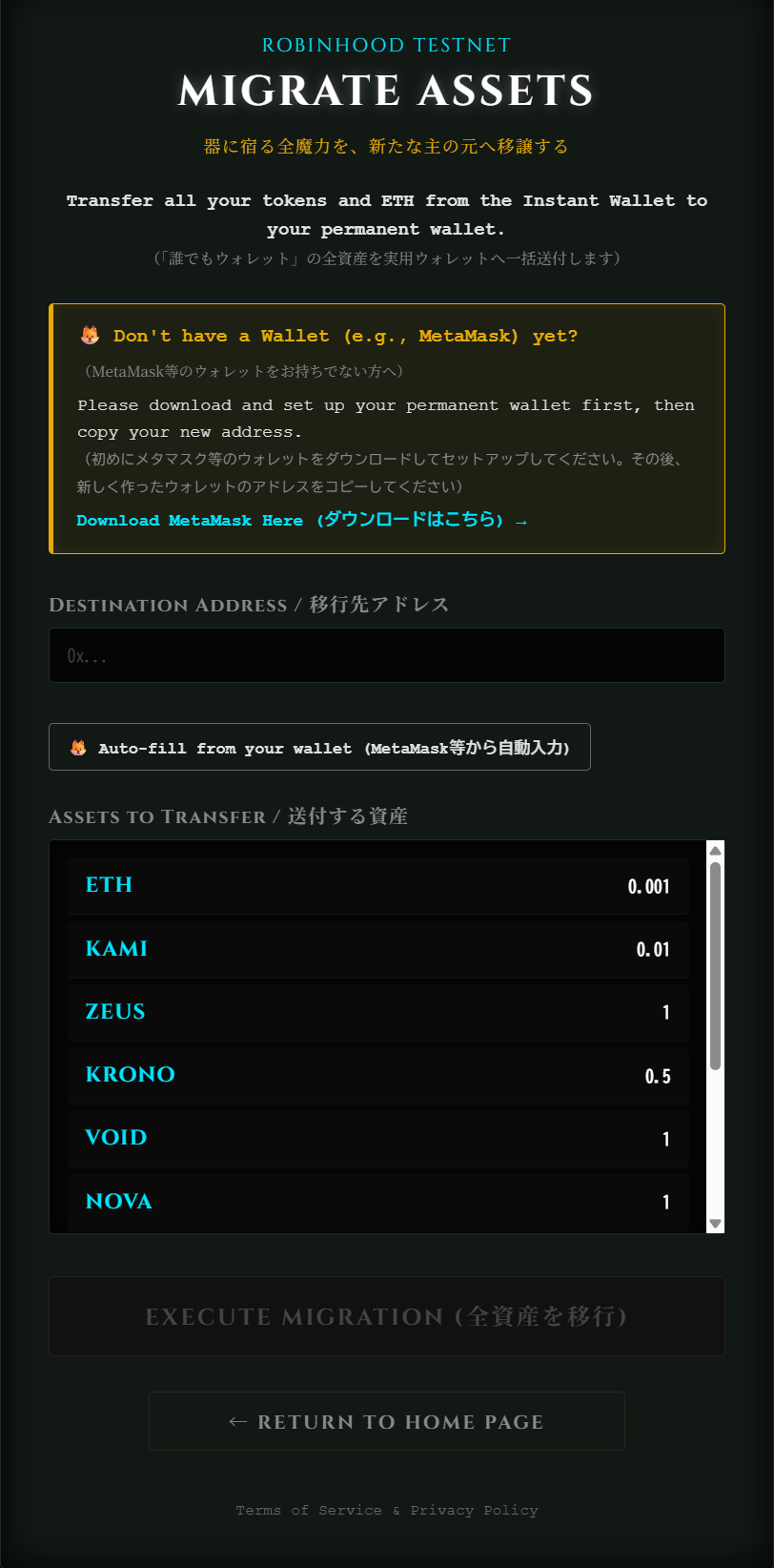
Instead, use our dedicated Asset Migration Page to safely transfer 100% of your tokens and remaining ETH to your new safe address in a single click. After the transfer, the temporary wallet will be safely deleted.
Go to Asset Migration Page (→ Move your funds safely)
Instead, use our dedicated Asset Migration Page to safely transfer 100% of your tokens and remaining ETH to your new safe address in a single click. After the transfer, the temporary wallet will be safely deleted.
Go to Asset Migration Page (→ Move your funds safely)
【STEP 5】🚀 本格ウォレットへの移行・卒業(資産一括送付)
体験用の「誰でもウォレット」からMetaMaskなどの永久ウォレットへステップアップする際、セキュリティ上の理由から、「誰でもウォレット」の秘密鍵をMetaMask等のウォレットへ直接インポートすることは推奨されません。(万が一、ブラウザから鍵が漏洩していた場合のリスクを引き継いでしまうためです)
代わりに、専用の「資産一括送付ページ」を利用して、保有しているすべてのトークンと残ったETHを、新しく作った安全なアドレスへ1クリックで丸ごと引っ越しさせてください。送付が完了すると、「誰でもウォレット」は自動的に安全に消去されます。
資産一括送付ページはこちら(→ 安全に資産をお引っ越しする)
体験用の「誰でもウォレット」からMetaMaskなどの永久ウォレットへステップアップする際、セキュリティ上の理由から、「誰でもウォレット」の秘密鍵をMetaMask等のウォレットへ直接インポートすることは推奨されません。(万が一、ブラウザから鍵が漏洩していた場合のリスクを引き継いでしまうためです)
代わりに、専用の「資産一括送付ページ」を利用して、保有しているすべてのトークンと残ったETHを、新しく作った安全なアドレスへ1クリックで丸ごと引っ越しさせてください。送付が完了すると、「誰でもウォレット」は自動的に安全に消去されます。
資産一括送付ページはこちら(→ 安全に資産をお引っ越しする)